Tabs organize content and allow users to switch between different views.
When to use
When to avoid
Specifications
States
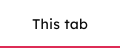
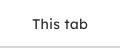
Tab styles
Default

This standard style is characterized by an active indicator, a colored line, that highlights the selected tab.
Outline

Emulates a physical folder system where the selected tab looses its bottom border to connect it with content below.
Pills

The pills style encloses tabs in a rounded container. The selected tab is highlighted with a filled background, giving it a button-like look.
Orientation
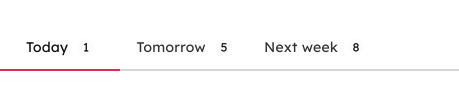
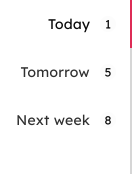
Anatomy
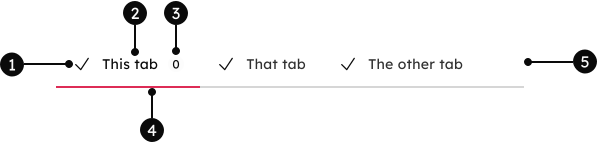
1
Leading icon
Optional and can be included in a tab to provide additional visual context for the label.
2
Label
The clickable title that describes the content of its corresponding panel.
3
Counter
A counter is a small number next to a tab's label. It provides a quick summary of items associated with that tab.
4
Active indicator
A visual marker, that clearly highlights the currently selected tab. Varies depending on the tab variant (Default, pills or outline).
5
Group container
The tab group container defines the full width of the tab set. The orientation prop indicates a horizontal or vertical tab structure. The position prop alters the desired alignment or spacing of the tab group.